
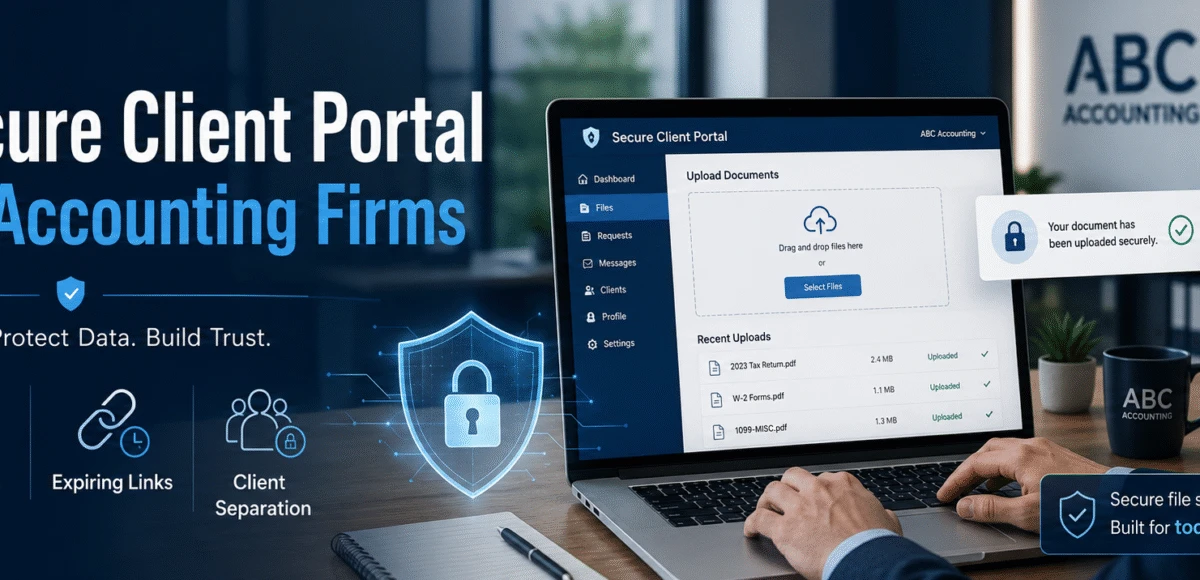
Secure Client Portals for Accounting Firms

If you’re an accounting firm handling tax returns, payroll files, bank statements, and IDs, a “good enough” file-sharing setup is how you end up with client data emailed to the wrong person, public links floating around forever, or a ransomware event during deadline week.
For most accounting firms (20–100 users), the best secure client portal/file-sharing setup is usually one of these 3, depending on how you work:
- Microsoft 365 (SharePoint/OneDrive + Teams) with the right security controls (best if you already live in Microsoft)
- A purpose-built client portal (best if you need a “client-first” branded portal experience)
- A hybrid (portal for external sharing + Microsoft for internal collaboration)
In this guide, you’ll get a buyer-first framework to choose the right option, the cost ranges, the security checklist to lock it down, and the mistakes that commonly lead to breaches.
The 5-step decision framework: choose the right portal/file-sharing setup
Use this as your “decision tree” to pick the right tool without getting lost in features.
Step 1: Identify what you’re sharing (and who gets it)
Most accounting firms share 4 categories of data:
- Tier A (highest risk): IDs, bank statements, payroll data, tax returns, e-sign docs
- Tier B: monthly financial packages, QuickBooks backups/exports, reporting workpapers
- Tier C: general docs (engagement letters, onboarding packets, checklists)
- Tier D: internal-only (HR, partner docs, internal finance)
If you routinely share Tier A/B externally, you need a portal-level approach, not just “email + attachments.”
Step 2: Decide what experience you want clients to have
Ask: “Do we want clients to log into something or just click a link?”
- Client login experience (more secure): best for repeated sharing + long-term storage
- Secure link experience (faster, higher risk): requires strict controls (expiration, access rules, logging)
If you don’t want clients logging in, your security has to be tighter.
Step 3: Choose your base platform (3 winning setups)
Option A: Microsoft 365 “Secure Sharing” (SharePoint/OneDrive + Teams)
Best when:
- Your firm already uses Microsoft daily
- You want internal collaboration + document control in one place
- You can enforce security rules centrally
What it gives you:
- Central file storage + versioning
- User and permission control
- Audit logs and recoverability (if configured right)
Option B: Purpose-built client portal
Best when:
- You want a client-friendly portal with clear upload/download workflows
- You want branding, client visibility, client-specific “vaults,” and controlled exchange
- You want clients out of your internal file system entirely
What it gives you:
- A clean “front door” for client exchange
- Stronger separation between internal files and external clients
- Often simpler client UX (depending on tool)
Option C: Hybrid (portal for clients + Microsoft internally)
Best when:
- Your staff collaborates internally in Microsoft
- You want external sharing to be locked down and consistent
- You want the lowest-risk workflow for tax season
This is extremely common for firms that want speed + security.
Step 4: Confirm the 7 security controls you must be able to enforce
Regardless of the tool, the “best” setup is the one you can enforce consistently.
Your chosen setup should support these minimum controls:
- MFA required (including admins)
- Least-privilege access (clients only see their folder; staff only see what they need)
- No anonymous/public links (or they’re disabled by policy)
- Link expiration + download restrictions (for external sharing)
- Audit logging (who accessed what, when)
- Device + location rules (limit risky logins)
- Backup + recovery plan (you can restore data fast after an incident)
If a vendor/tool can’t do these or your MSP won’t configure them, you’re buying risk.
Step 5: Decide how you’ll run the workflow during tax season
Tax season breaks weak systems. Decide now:
- Where do clients upload sensitive docs?
- How do you prevent “wrong recipient” sharing?
- How do you handle last-minute staff access requests safely?
- What happens if a partner’s account gets compromised?
Your “best portal” is the one that holds up when you’re moving fast.
Cost expectations: what a secure client portal/file-sharing setup typically costs
Costs vary widely by tool and security maturity, but here are realistic planning ranges for a 20–100 user accounting firm.
Typical monthly costs (software)
- File sharing/portal licensing: often $8–$35 per user/month (varies by product and plan)
- If you’re already paying for Microsoft 365: your incremental portal cost may be $0 for tooling but not $0 for correct configuration
One-time setup costs (implementation + hardening)
A secure setup usually includes:
- tenant/security baseline settings
- permission architecture
- client folder structure
- retention rules
- external sharing policies
- training + rollout
Typical implementation ranges:
- $2,500–$7,500 for a smaller environment with clean requirements
- $7,500–$15,000+ if you have multiple locations, messy permissions, legacy systems, or need workflow redesign
Ongoing management costs (the part most firms ignore)
- The risk isn’t “choosing the tool.” The risk is:
- unmanaged access
- stale accounts
- broken permissions
- staff sharing shortcuts
- no audits
Expect ongoing admin/security management as part of managed IT / security services.
How to lock it down: a practical hardening checklist
If you want a secure setup that holds up during deadline pressure, implement these:
1) External sharing rules (non-negotiable)
- Disable anonymous sharing links (or restrict to approved, expiring links only)
- Require authentication for any Tier A/B data
- Require link expiration (ex: 7–30 days) for external links
- Restrict re-sharing (clients shouldn’t be able to forward access)
2) Identity and access controls
- Require MFA for all users (especially admins)
- Use role-based access (partners/admins/staff)
- Remove “everyone can access everything” default groups
- Review access quarterly (minimum)
3) Folder + permission architecture
- Client-by-client folders with strict boundaries
- Separate internal working folders from client delivery folders
- Use templates so you don’t reinvent permissions each engagement
- Avoid manual “add people ad hoc” processes
4) Logging + monitoring
- Turn on audit logs
- Alert on suspicious activity (mass downloads, unusual login locations)
- Monitor privileged accounts more aggressively
5) Backup + recovery (because ransomware happens)
- Ensure you have a real backup strategy (not just “we trust the cloud”)
- Test restores
- Define a recovery process before deadlines hit
Common mistakes that cause breaches, downtime, and client trust issues
These are the patterns we see repeatedly when firms get burned:
- Public links with no expiration (shared once, exposed forever)
- No MFA for partners/admins (one compromised login = widespread access)
- Overly broad permissions (“staff can access everything”)
- Mixing internal and external sharing in the same folders
- No auditing (you can’t prove what happened—or what didn’t)
- No offboarding discipline (former staff still have access)
- No tested recovery plan (a deadline-week incident becomes catastrophic)
If you fix nothing else: fix MFA + external sharing policies + permissions.
How to choose a provider to set this up (and what to ask)
Many “IT providers” can install tools. Far fewer can design a secure workflow for a professional services firm under deadline pressure.
Ask these 10 buyer questions
- How do you prevent anonymous sharing links from being created?
- What’s your standard external-sharing policy for Tier A/B client data?
- How do you structure permissions so clients never see other clients?
- Do you implement MFA everywhere—including partner/admin accounts?
- How do you monitor for mass downloads or unusual access patterns?
- What’s your offboarding process for staff access removal?
- Do you document the folder/permission architecture for future hires?
- What’s your backup strategy and how often do you test restores?
- What user training do you provide so staff don’t bypass the process?
- How long does rollout take, and how do you avoid disruption in tax season?
Red flags
- “We’ll just set up SharePoint and you’ll be good.”
- “Clients can just use a link.”
- “Backups aren’t necessary because it’s in the cloud.”
- No discussion of audit logs, monitoring, or access reviews.
Real-world example
Scenario: A 45-user accounting firm was sharing tax documents by email and unexpired links. During deadline season, a mailbox compromise led to client spoofing and risky document exposure.
Fix: Implemented a standardized client exchange workflow:
- client-by-client folders
- MFA enforced
- external links restricted + expiring
- audit logging enabled
- staff trained on “approved sharing process”
Result: Fewer “where is that file?” issues, reduced risky sharing behavior, improved client confidence during deadlines.
Trust signals (why you should trust Fothion)
- 20+ years in IT supporting small-to-mid sized organizations
- 95% positive customer feedback/reviews
- Experience supporting professional services environments with deadline pressure and sensitive client data
Get a Secure Client Portal & File-Sharing Assessment (30 Minutes)
If you’re unsure whether your current file-sharing or client portal setup would hold up during tax season or whether it’s quietly exposing client data—the fastest next step is a short assessment.
Book a 30-minute call with Fothion and we’ll:
- review your current client file-sharing workflow
- identify high-risk sharing behaviors and permission gaps
- assess MFA, access controls, and external sharing policies
- evaluate backup + recovery readiness for deadline periods
- outline practical fixes to reduce breach risk and downtime
Book here: https://www.fothion.com/schedule-a-phone-call/
FAQs (with answers):
FAQ 1: Is SharePoint/OneDrive secure enough for client tax documents?
Yes—if it’s configured correctly (MFA, restricted external sharing, least-privilege permissions, logging, and recovery). The tool isn’t the problem; the default settings and unmanaged sharing behavior are.
FAQ 2: Should clients be required to log in to access files?
For sensitive data (IDs, tax returns, payroll), login-based access is safer than anonymous links. If you prefer “no login,” you must enforce expiring links, authentication rules, and monitoring.
FAQ 3: What’s the biggest risk with “secure links”?
The biggest risk is links that don’t expire and get forwarded, reused, or discovered later. The second biggest is no visibility into who accessed what.
FAQ 4: How long does it take to roll out a secure portal setup?
A typical rollout is 1–4 weeks, depending on how messy permissions are, how many clients you have, and whether you’re redesigning workflow vs. “lifting and shifting.”
FAQ 5: What should we do before tax season to reduce portal/file-sharing risk?
At minimum: enforce MFA, lock down external sharing rules, clean up permissions, train staff on the process, and confirm backups/restores are working.
FAQ 6: Do we need backups if everything is in Microsoft/“the cloud”?
You still need a recovery plan. Accidental deletion, compromised accounts, malicious changes, and retention issues can all create downtime during deadlines.
Leave a Comment